WordPress Setup
Lantern integrates with WordPress to show the feedback widget to logged-in WordPress users. This is the recommended setup for WordPress agency clients.
#Installation options
There are two ways to install the widget on a WordPress site:
- WordPress plugin (recommended) — installs via the WordPress plugin admin, no code editing required
- Script tag — manually add the script to your theme or a custom plugin
#Option 1: WordPress plugin (recommended)
The Lantern WordPress plugin handles the script tag installation for you and adds a settings screen inside WordPress admin.
See WordPress Plugin for full installation and configuration instructions.
#Option 2: Manual script tag
If you prefer not to use the plugin, you can add the script tag manually.
#Using functions.php
Add the following to your active theme's functions.php file:
function lantern_widget_script() {
    echo '<script src="https://lanternhq.app/widget.js" data-key="YOUR_EMBED_KEY_HERE" defer></script>';
}
add_action('wp_head', 'lantern_widget_script');
Replace YOUR_EMBED_KEY_HERE with your client's embed key from the Lantern workspace.
#Using a custom plugin
If you prefer not to modify theme files (safer for updates), create a small custom plugin:
<?php
/**
 * Plugin Name: Lantern Widget
 * Description: Loads the Lantern feedback widget.
 */

function lantern_widget_script() {
    echo '<script src="https://lanternhq.app/widget.js" data-key="YOUR_EMBED_KEY_HERE" defer></script>';
}
add_action('wp_head', 'lantern_widget_script');
Save this as lantern-widget.php in /wp-content/plugins/lantern-widget/, then activate it from the Plugins screen.
#How the WordPress gate works
The widget checks for the presence of the #wpadminbar element in the DOM. This element is only added by WordPress for logged-in users.
- Logged-in WordPress users see the widget button
- Logged-out visitors do not see anything
This means your client's regular site visitors will never see the widget — only their team members who are logged into WordPress.
#Testing the installation
- Log into the WordPress site as an admin or editor.
- Visit any page on the frontend (not the wp-admin area).
- You should see the Lantern widget button appear on the page.
- Click it, fill in the form, and submit a test issue.
- Check your Lantern workspace to confirm the issue appears under the correct client.
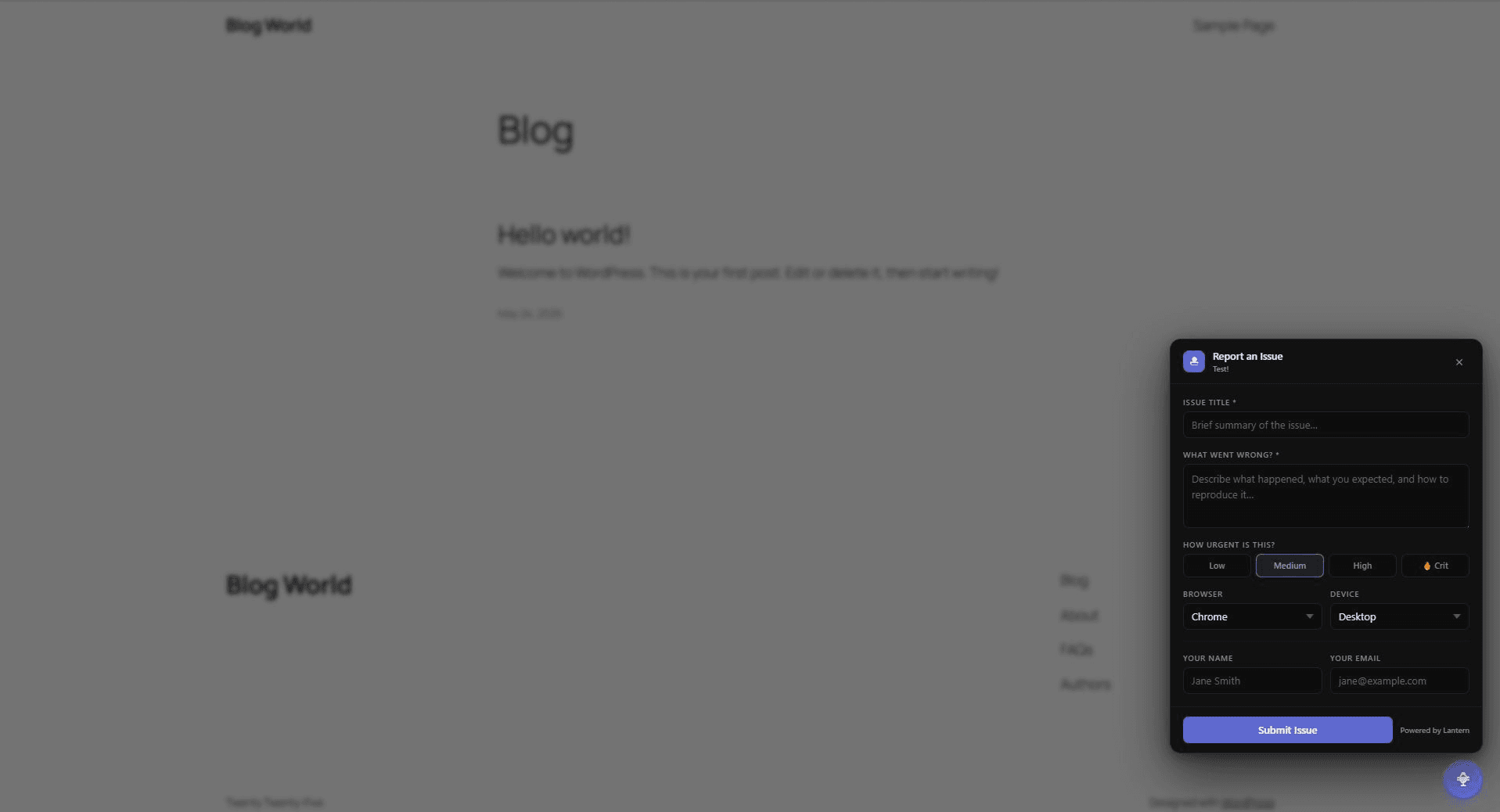
If the widget does not appear:
- Confirm you are logged into WordPress (not just viewing the admin area)
- Check that the embed key in the script tag matches the key in your Lantern workspace
- Open the browser console and look for errors from
widget.js - Confirm the
#wpadminbarelement is present in the page source (some themes hide it)
#Hiding the admin bar
Some WordPress setups hide the admin bar on the frontend using CSS (#wpadminbar { display: none; }). Even with CSS hiding, the element is still in the DOM, so the widget should still detect it. However, if the admin bar is removed entirely via add_filter('show_admin_bar', '__return_false'), the widget will not detect the logged-in state.
If you need the widget to show on a site where the admin bar is fully removed, contact support for alternative configuration options.