Issue Tracking
Issues are the core of Lantern. They represent bugs, feature requests, questions, or design feedback submitted by your clients — either through the widget, through their portal, or created manually by your team.
#Issue fields
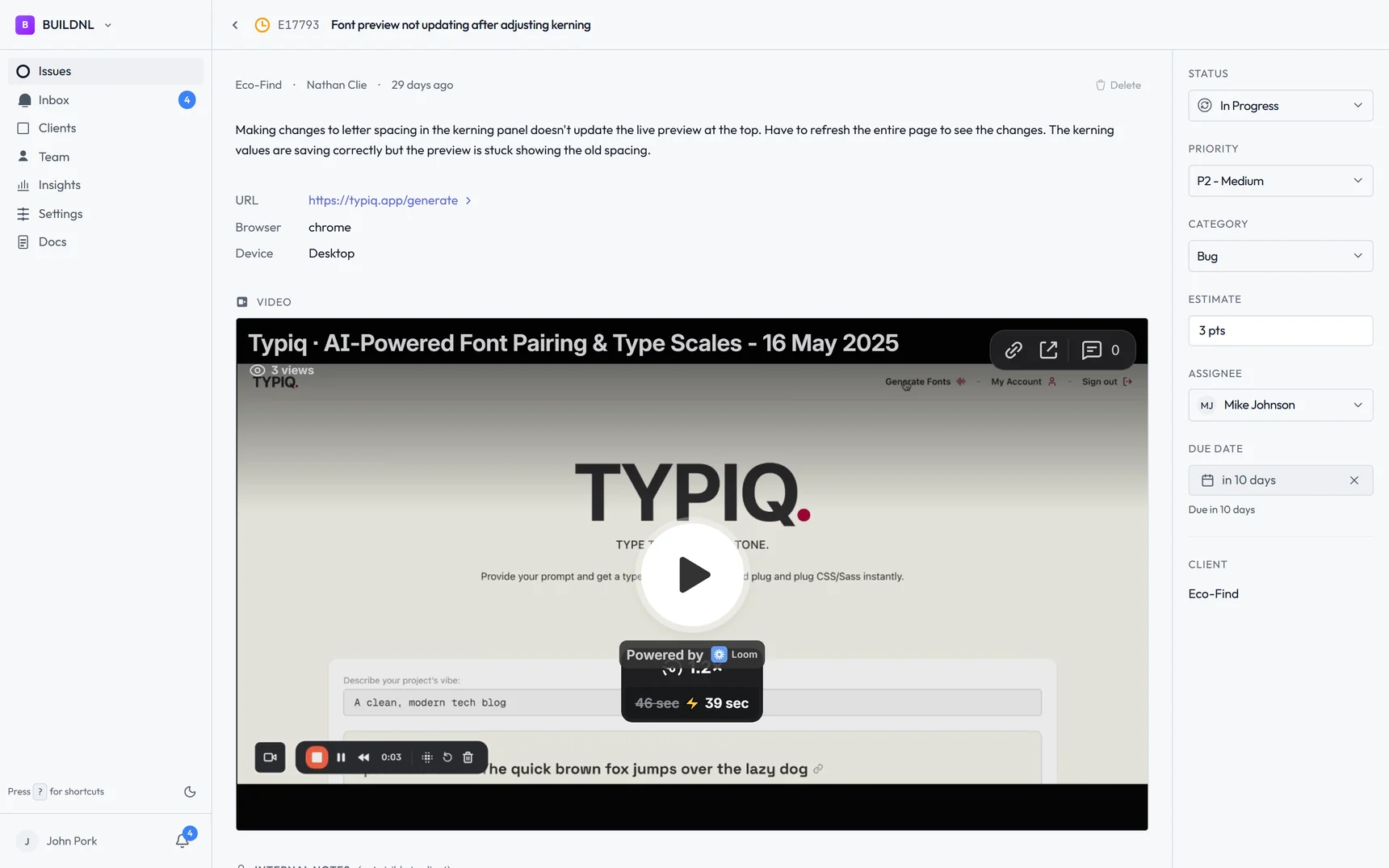
Each issue captures the following information:
| Field | Description |
|---|---|
| Title | Short summary of the issue |
| Description | Full details of what happened |
| Category | Bug, Feature, Question, or Design |
| Status | See lifecycle below |
| Priority | P0 (critical) through P3 (low) |
| URL | The page where the issue occurred |
| Browser / Device | Reported browser and device |
| Urgency | How urgently the client needs this resolved |
| Assigned to | Team member responsible for this issue |
| Due date | Optional target resolution date |
| Tags | Custom labels for filtering and organisation |
| Loom video | A link to a Loom recording — paste in a Loom share URL |
| Attachments | Screenshots and images (JPEG, PNG, GIF, WebP, max 10 MB each) |
#Issue lifecycle
Issues move through the following statuses:
New → Investigating → In Progress → Fixed → Deployed → ClosedNew — Issue has been submitted and is awaiting triage.
Investigating — Your team is looking into the issue.
In Progress — Work has started on a fix or implementation.
Fixed — The fix is complete but not yet live.
Deployed — The fix is live in the client's environment.
Closed — The issue is resolved and no further action is needed.
You can move an issue to any status at any time. Each status change is logged in the issue timeline so you have a full audit trail.
#Priority levels
| Priority | Meaning |
|---|---|
| P0 | Critical — blocking, needs immediate attention |
| P1 | High — important, needs to be addressed soon |
| P2 | Medium — should be done but not urgent |
| P3 | Low — nice to have or minor |
#Comments and updates
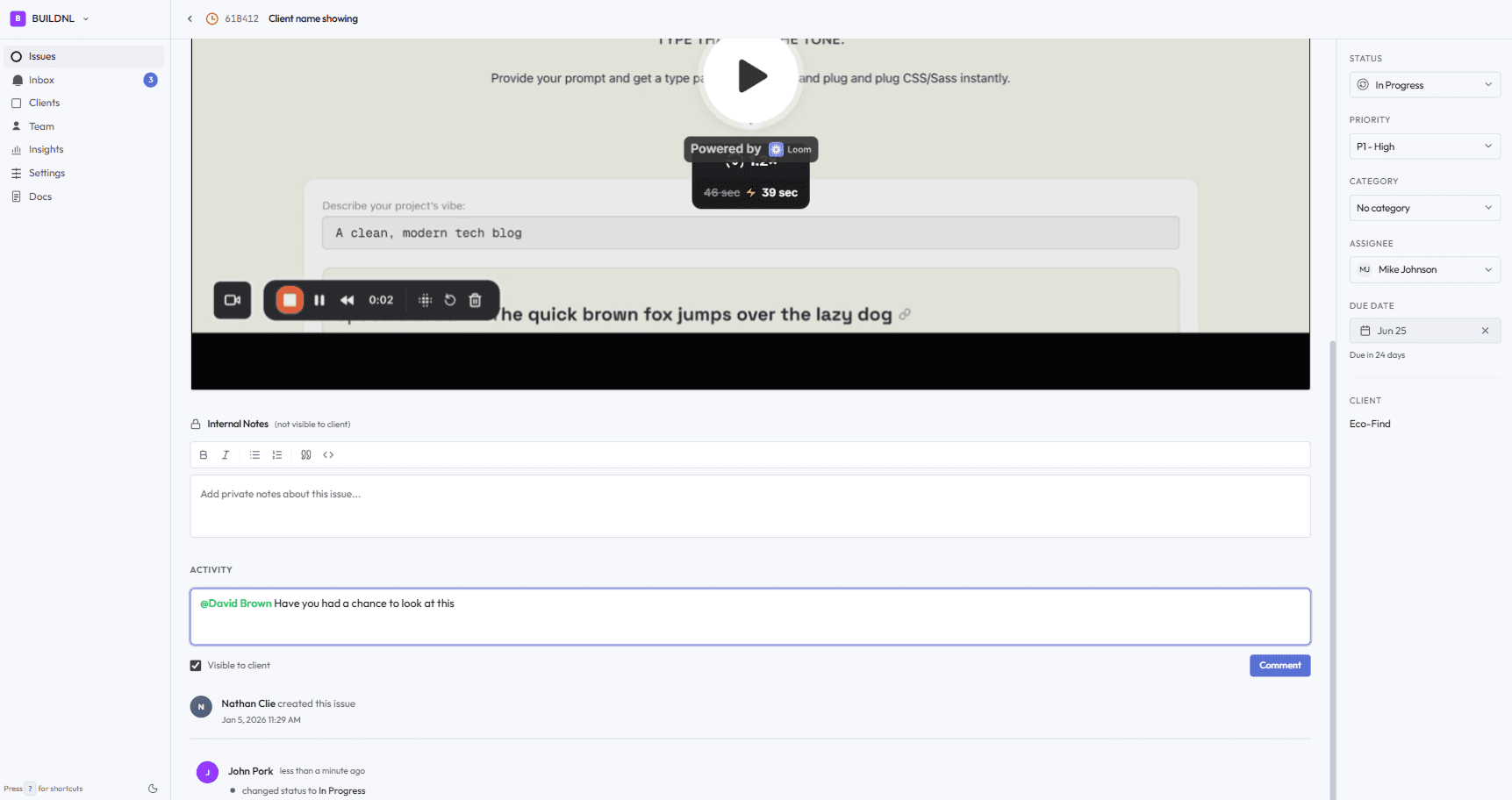
Every issue has a timeline showing all activity: status changes, comments, and file uploads.
Comments can be:
- Visible to client — the client can see this in their portal
- Internal only — visible only to your team
Team members can also pin comments to highlight important information, and reply to existing comments to keep discussion threaded.
#Internal notes
Internal notes work the same as comments but are flagged as internal-only. They never appear in the client portal. Use them for team-only context, debugging notes, or coordination.
#Archiving issues
Issues can be archived to remove them from your main list without deleting them. Archived issues are still searchable and viewable. To archive an issue, open it and select Archive from the options menu.
Archived issues do not count against your plan limits.
#Searching and filtering
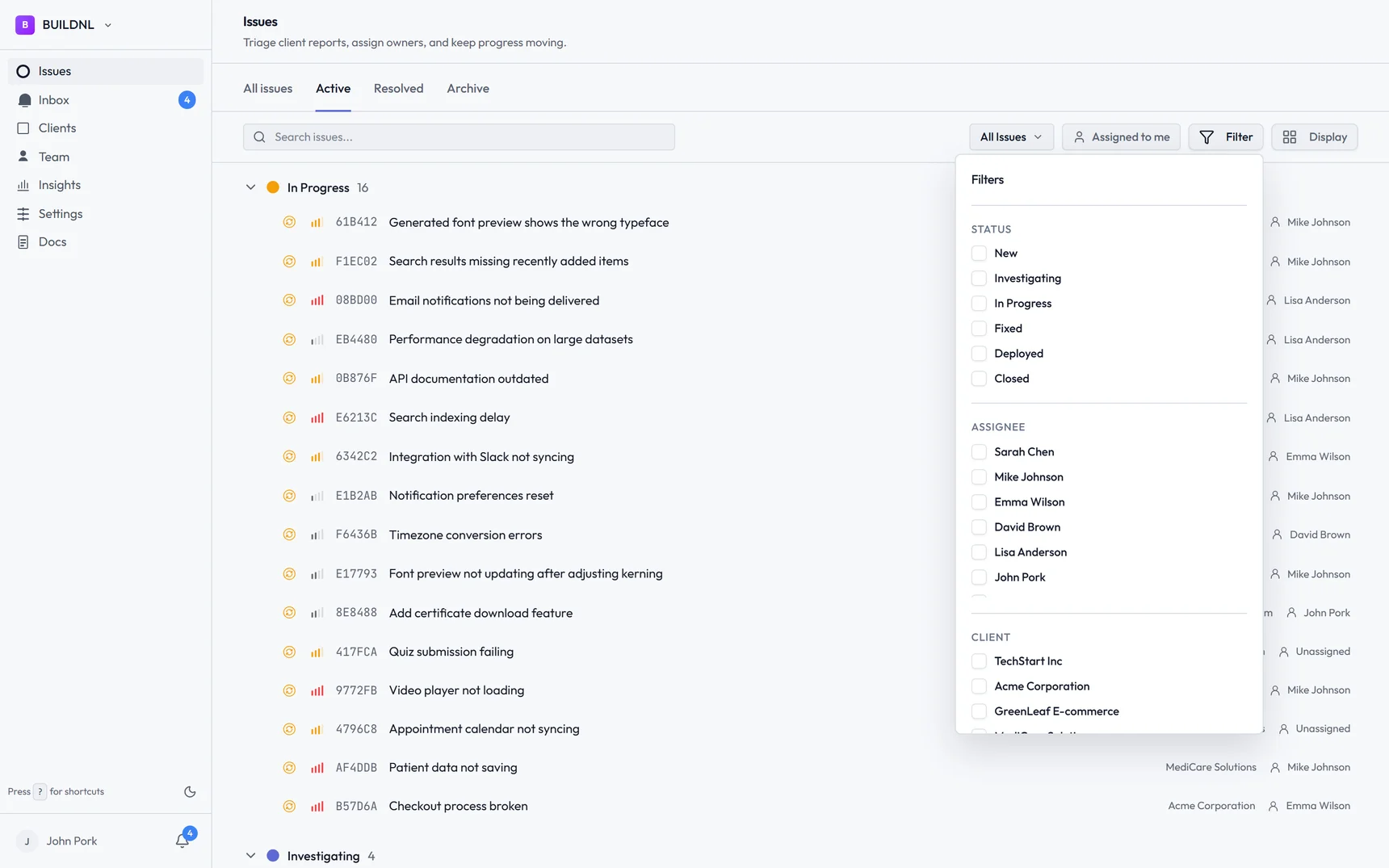
On the Issues list you can:
- Search by keyword — searches titles, descriptions, and comments using full-text search
- Filter by status, priority, category, assigned member, tag, or date range
- Sort by created date, updated date, priority, or due date
Saved views let you save a combination of filters so you can return to them quickly.
#Assigning issues
Open an issue and use the Assigned to field to assign it to a team member. If your organisation only has one team member, new widget submissions are automatically assigned to them.
#Due dates
Set a due date on any issue from the issue detail view. The team member who sets the due date is recorded for accountability.
#Tags
Tags are per-client labels with customisable names and colours. Create tags from the client settings or directly from the issue view. Tags help you filter and group related issues.
#Jira sync
On the Team plan with Jira configured, you can sync any issue to your Jira board with a single click. See Jira Integration for setup and usage.
#Submitting issues manually
Team members can submit issues on behalf of clients directly from the team workspace. Open the client's issue list and click New issue.
#Email notifications
Team members and client users receive email notifications when:
- A new issue is submitted
- A comment is added (visible to them)
- An issue status changes
- An issue is assigned to them
Notifications can be enabled or disabled per user in their profile settings.