Inbox
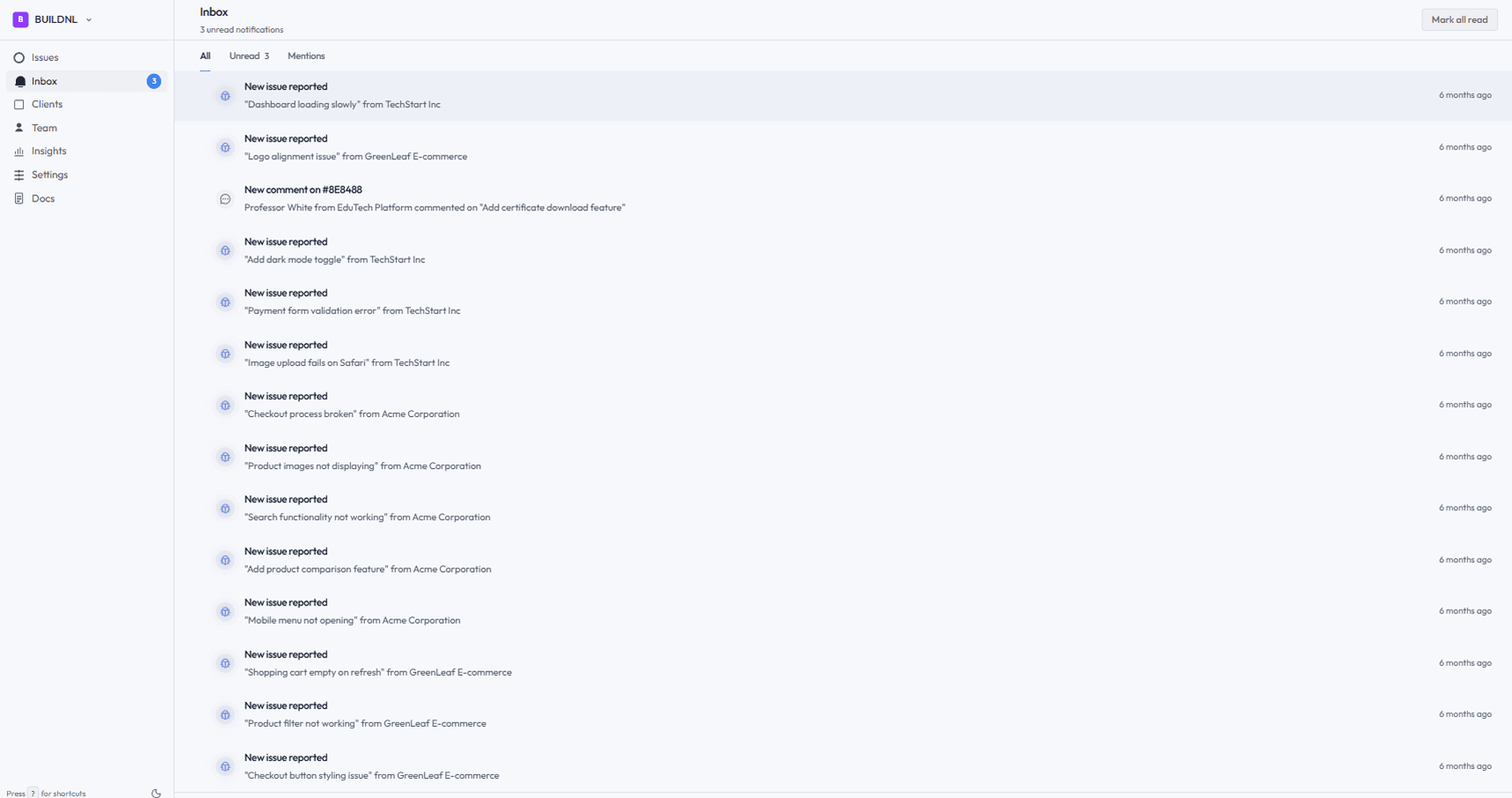
The Inbox is your notification centre. It collects all activity that is relevant to you — new issues, comments, status changes, and assignments — so you can stay on top of what needs your attention.
#What appears in the inbox
You receive a notification in your inbox when:
- A new issue is submitted for a client you manage
- A comment is posted on an issue you are involved with
- An issue is assigned to you
- The status of an issue you are watching changes
- A client replies to a comment thread you are part of
For client users, the inbox shows activity on their project's issues — status changes and comments visible to them.
#Accessing the inbox
Click Inbox in the sidebar to open your notification list. Unread notifications are highlighted.
#Marking notifications as read
Notifications are marked as read when you open the related issue. You can also mark all notifications as read from the inbox header.
#Email notifications
In addition to the in-app inbox, Lantern sends email notifications for the same events. This means you are notified even when you are not logged in.
Email notifications can be turned off per user:
- Go to Settings (or your profile).
- Find Email notifications.
- Toggle off to stop receiving emails.
This setting is per user — turning off emails for yourself does not affect other team members or client users.
#Real-time delivery
Inbox notifications are delivered in real time. You do not need to refresh the page — new notifications appear as they happen.
A badge on the Inbox sidebar item shows your unread count.
#Inbox for client users
Client users have their own inbox within the client portal. It works the same way — they see notifications for comments and status changes on their issues. They do not see internal activity or other clients' issues.