Team Management
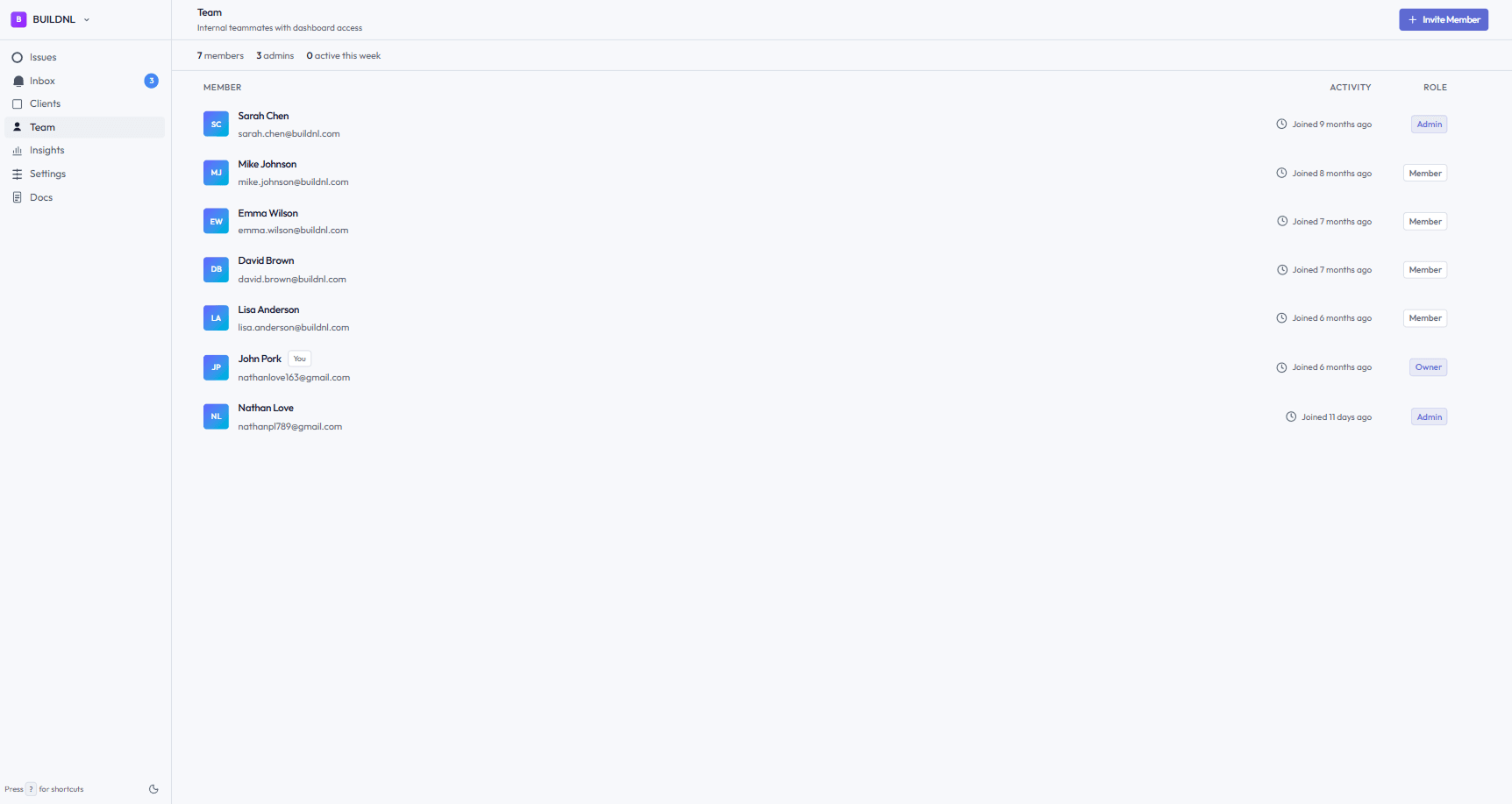
The Team Management features let you invite colleagues, assign roles, and control who has access to your Lantern workspace.
#Roles
Lantern has three team member roles:
| Role | Capabilities |
|---|---|
| Owner | Full access including billing, plan management, and all settings. There is one Owner per organisation (the person who created the account). |
| Admin | Can manage clients, issues, team members, and integrations. Cannot access billing. |
| Member | Can manage clients and issues. Cannot invite team members or change settings. |
#Inviting team members
- Go to Settings → Team Members (or Members in the sidebar).
- Click Invite member.
- Enter the person's email address.
- Choose a role: Admin or Member.
- Click Send invitation.
The invited person receives an email with a link to create their account and join your workspace. The invitation link expires after 7 days.
Plan limits:
- The Individual plan is limited to 1 team member (the Owner).
- Team plan allows unlimited team members.
#Resending invitations
If an invitation expires or is not received:
- Go to Settings → Team Members.
- Find the pending invitation.
- Click Resend.
A new invitation email is sent. The old link is invalidated.
#Changing a team member's role
- Go to Settings → Team Members.
- Find the team member.
- Click the role dropdown and select a new role.
The Owner role cannot be transferred from Settings — contact support if you need to transfer ownership.
#Removing team members
- Go to Settings → Team Members.
- Find the team member.
- Click Remove.
Removed members lose access to the workspace immediately. Issues and comments they created are preserved.
#Your profile
Each team member can update their own profile:
- Display name — shown to clients and other team members
- Avatar — uploaded profile picture
- Email notifications — on/off toggle for notification emails
Go to Settings → Profile to update these.
#Organisation settings
The Owner and Admins can update organisation-level settings:
- Organisation name — shown to clients and in notifications
- Logo — used in client-facing emails and portals
Go to Settings → Organisation to update these.
#Security
Each team member authenticates independently. There are no shared logins.
Logging out ends your session immediately. Sessions are automatically kept active while you are using the app.