Adding Your First Client
Clients in Lantern represent the businesses or projects you manage issues for. Each client gets their own issue list, embed key, and optional client portal.
#Creating a client
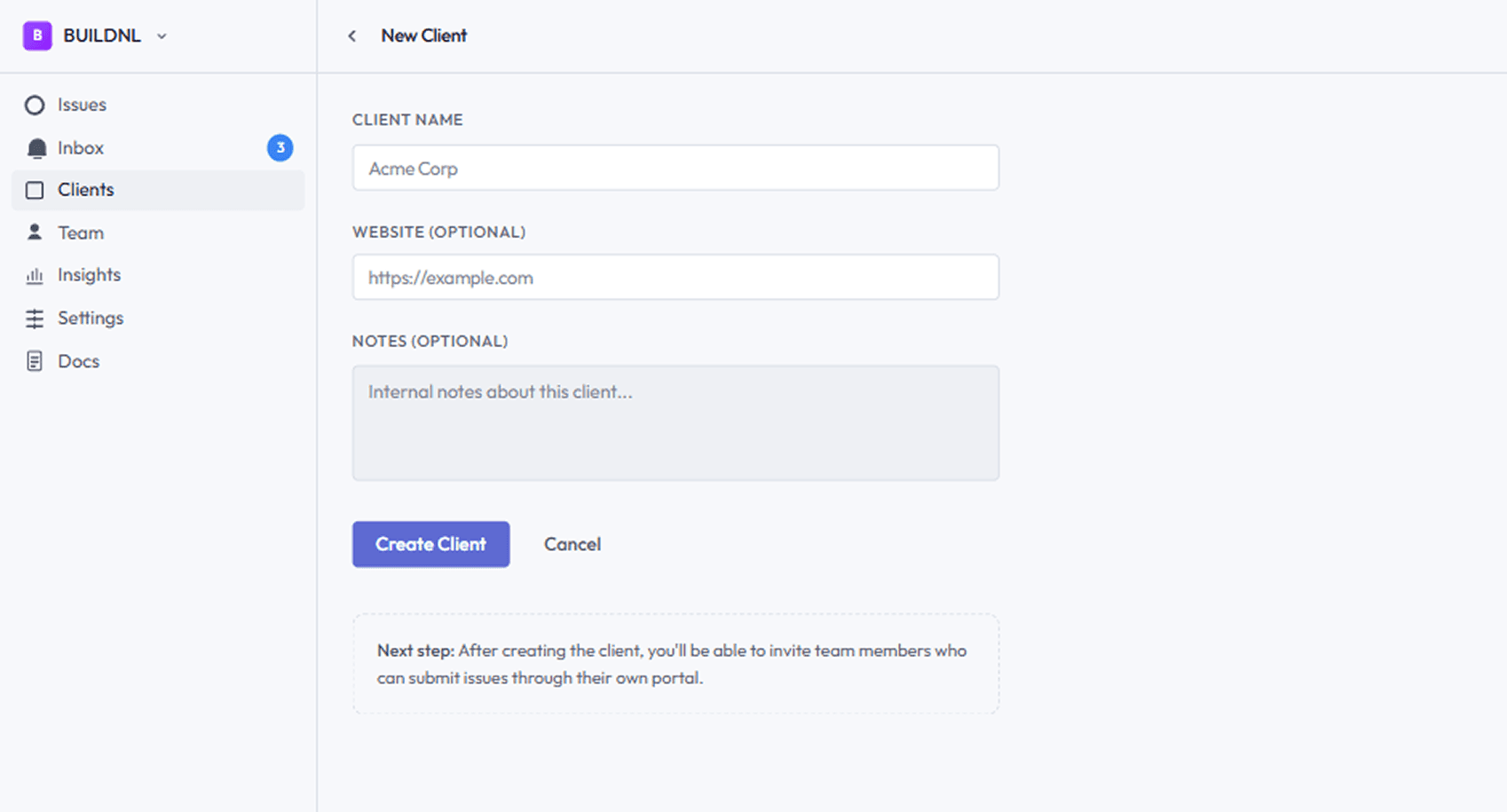
- In your team workspace, go to Clients in the sidebar.
- Click Add client.
- Fill in the details:
- Name — the client's business or project name (required)
- Website URL — their main website address
- Primary contact email — the main point of contact
- Notes — internal notes your team can see (not visible to the client)
- Click Save.
#What gets created
When you create a client, Lantern automatically generates an embed key — a unique code used to identify this client's widget submissions. You can find it on the client's settings page.
#Plan limits
On the Individual plan, you can have up to 5 active clients. The Team plan has no client limit.
#Inviting the client to their portal
Once a client exists, you can invite their team to a client portal where they can view and submit issues directly.
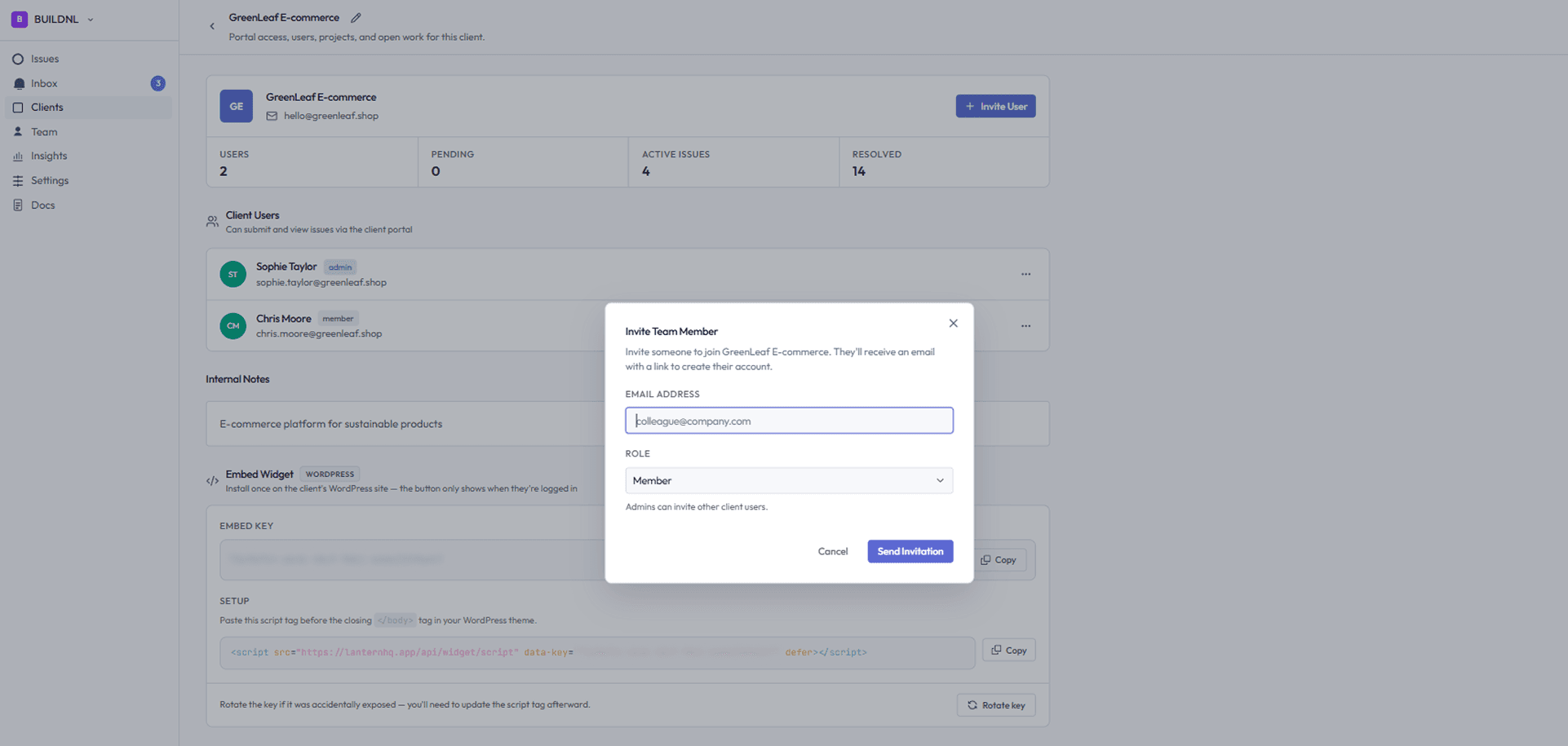
- Open the client from your Clients list.
- Go to the Users tab.
- Click Invite user and enter their email address.
- Choose a role:
- Admin — can manage users and settings within the portal
- Member — can submit and view issues
- The client receives an email invitation with a link to set up their account.
See Client Portals for more detail on how the portal works.
#Managing clients
From the Clients list you can:
- Click a client to view their issues and settings
- Edit client details at any time
- Regenerate the embed key if it has been compromised
- Configure Jira overrides per client (Team plan, with Jira enabled)