Creating Your Account
This guide walks you through signing up for Lantern and getting your workspace set up.
#Sign up
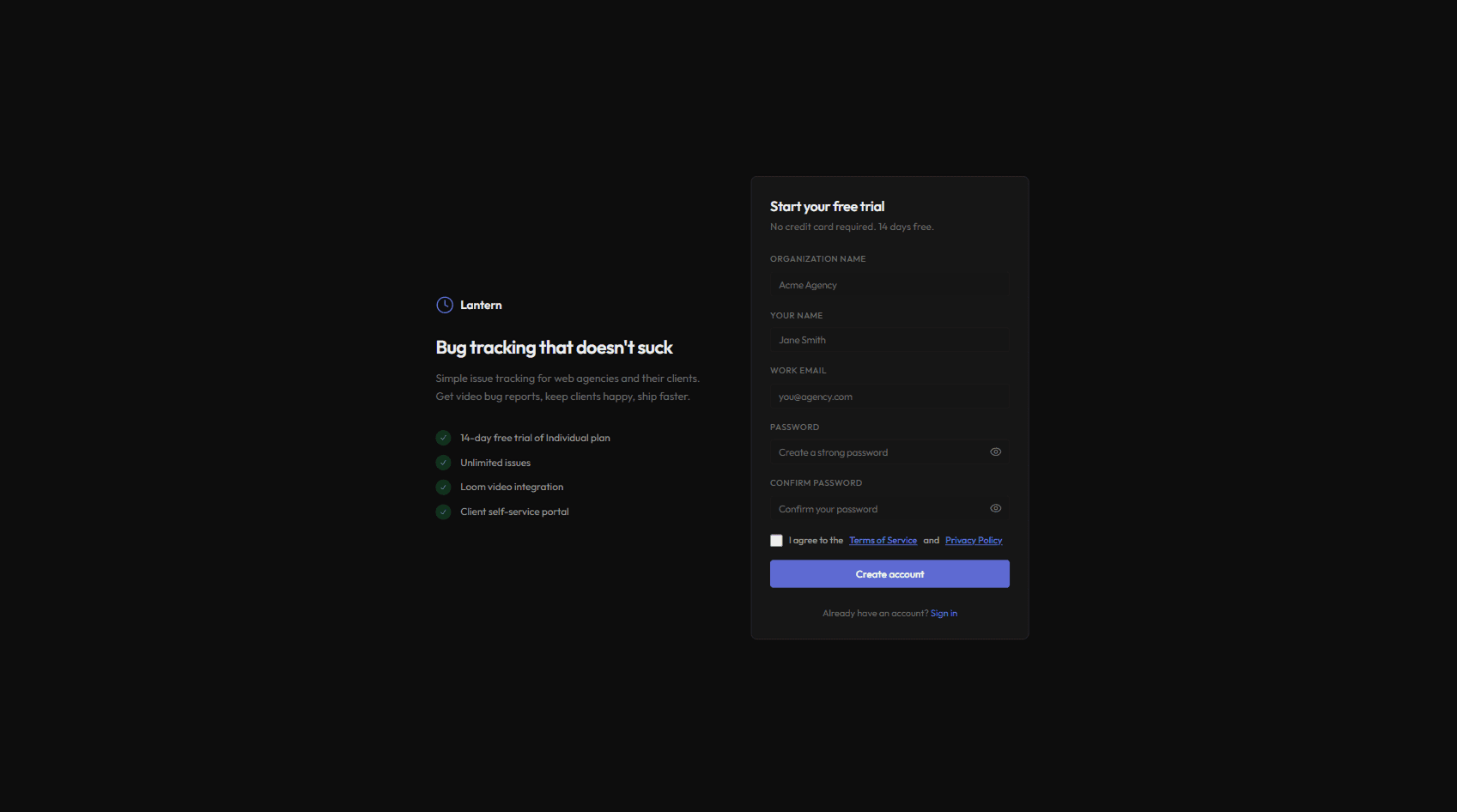
- Go to lanternhq.app and click Sign up or Start free trial.
- Enter your email address and choose a password.
- You will be asked to name your organisation — this is typically your agency name.
- Choose a plan:
- Individual — for solo developers or small agencies. Starts with a 14-day free trial, then costs £12.50/month.
- Team — for agencies with multiple team members. Payment is required upfront.
#Email verification
After signing up on the Individual plan, check your inbox for a verification email from Lantern. Click the link to confirm your address before accessing your workspace.
On the Team plan, your email is automatically confirmed when you complete checkout.
#Completing checkout (Team plan)
If you chose the Team plan, you will be redirected to a Stripe checkout page to enter your payment details. Once payment is complete, your workspace is activated immediately and you can start adding clients.
You can choose between GBP, EUR, and USD when checking out.
#What gets created
When you complete signup, Lantern creates:
- An organisation tied to your account
- A team member record with the Owner role
- A 14-day trial period (Individual plan only)
The Owner role gives you full access to all settings, billing, and team management.
#Logging back in
Visit lanternhq.app and click Log in. Enter the email and password you used during signup.
If you forget your password, use the Forgot password link on the login page to receive a reset email.
#Inviting team members
Once your account is active, you can invite additional team members from Settings → Team Members. See Team Management for details.