Jira Integration
Lantern can sync issues to your Jira board with a single click. This keeps your internal development workflow in Jira while letting clients report and track issues in Lantern.
#Requirements
- The Team plan (Jira integration is not available on the Individual plan)
- A Jira account with API access
- Your Jira site URL, login email, and an API token
#Getting a Jira API token
- Log into your Jira account.
- Go to id.atlassian.com/manage-profile/security/api-tokens.
- Click Create API token.
- Give it a name (e.g. "Lantern") and copy the token.
Keep this token safe — you will not be able to view it again after closing the dialog.
#Connecting Jira to Lantern
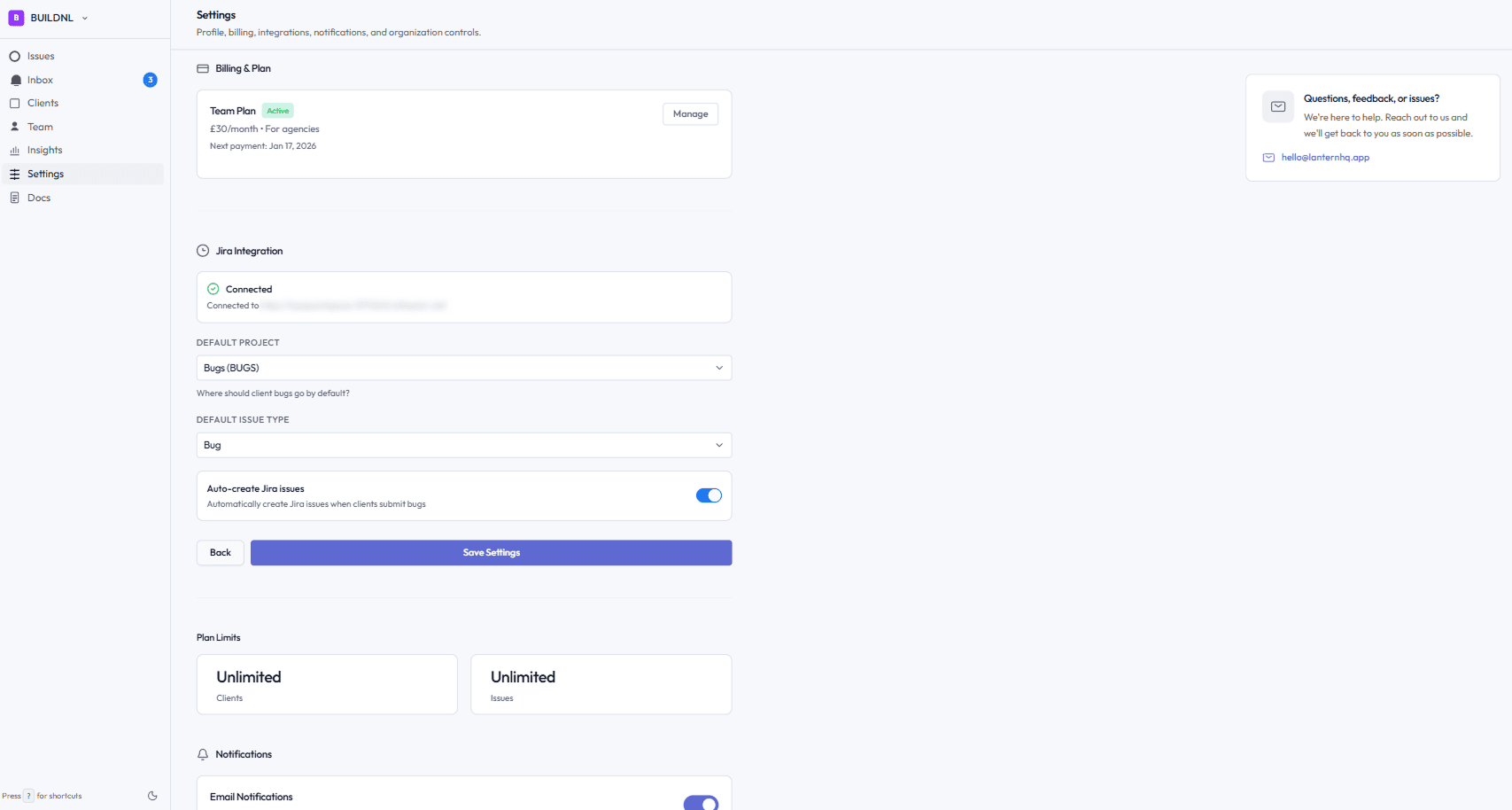
- In your team workspace, go to Settings → Jira.
- Enter:
- Jira site URL — e.g.
https://yourcompany.atlassian.net - Email — the Jira account email
- API token — the token you copied above
- Jira site URL — e.g.
- Click Test connection. Lantern verifies the credentials before saving.
- Once connected, choose your:
- Default project — the Jira project new issues will be created in
- Default issue type — e.g. Bug, Task, Story
- Toggle Jira integration enabled to turn it on.
Your API token is encrypted before being stored.
#Syncing an issue to Jira
Once Jira is connected, a Sync to Jira button appears on every issue.
- Open the issue you want to sync.
- Click Sync to Jira.
- Lantern creates a new Jira issue with:
- The Lantern issue title and description (formatted for Jira)
- Labels:
lanternand the client name - The project and issue type from your default settings (or client-level overrides)
- The Jira issue key (e.g.
PROJ-42) and a link to the Jira issue appear on the Lantern issue.
Each issue can only be synced once. If a sync fails, you can retry after fixing the credentials.
#Client-level overrides
Different clients may map to different Jira projects. You can set per-client overrides:
- Go to Clients and open the client.
- Go to the Jira tab.
- Set:
- Project — override the default project for this client's issues
- Issue type — override the default issue type
- Assignee — automatically assign synced issues to a specific Jira user
If no override is set, the organisation-level defaults are used.
#Sync status
Each issue shows its Jira sync status:
| Status | Meaning |
|---|---|
| Not synced | The issue has not been sent to Jira yet |
| Pending | Sync is in progress |
| Synced | Successfully created in Jira |
| Failed | Sync failed — check your Jira credentials or the error message |
All sync attempts (successful and failed) are logged in the integration log, visible in Settings → Jira → Logs.
#What gets created in Jira
Lantern creates a new Jira issue with:
- Summary — the Lantern issue title
- Description — formatted in Jira Document Format, including the description, URL, browser, device, and a link back to the Lantern issue
- Labels —
lantern+ client name (e.g.acme) - Issue type — from your settings
- Project — from your settings or client override
- Assignee — from client override (if set)
Lantern does not update the Jira issue after creation. Status changes in Lantern are not synced back to Jira.
#Disconnecting Jira
To disconnect:
- Go to Settings → Jira.
- Toggle Jira integration enabled off, or clear the credentials and save.
Existing Jira issue links on previously synced issues are preserved.
#Troubleshooting
Test connection fails:
- Check that the Jira site URL is correct (include
https://and no trailing slash) - Check that the email matches the Jira account that generated the token
- Check that the API token has not been revoked
Sync fails after connecting:
- Check that the default project key exists and your Jira account has permission to create issues in it
- Check the error message shown on the issue
- View the full error in Settings → Jira → Logs